Choose your development method and keep control of the project.
Build framework applications with visual modeling, supported AI operations and custom extensions. Work with Site and Template project files for presentation, or operate development tools for projects built on another stack.

Run the environment around your code
Cocpit: project knowledge
Keep decisions, technical context, and handoff information available for the next person or AI session. Shared memory needs active maintenance to stay useful.
Runboard: project work
Organize tasks and ownership so the team can see what remains and continue work across sessions. Internal work records are separate from public community profiles.
Autopilot: execution and coordination
Coordinate AI work around project context and assigned tasks. Client and provider support is specific to the integration; universal interchangeability is not implied.
These tools run on a Createrun instance. A project they help produce can use a different framework and runtime. Scope the required apps and dependencies with us.
Createrun framework applications have a different boundary: their compiled DLLs retain framework dependencies. Project files and custom source authored by your team or AI remain editable; an arbitrary external repository does not automatically become a Store-installable package.
Custom GateMethod example
Forms, approvals and workflows are configured visually. This compiled example shows a custom calculation extension using the actual IAsyncGate request and Response contract.
using Createrun.Gate.Client;

namespace Createrun.Samples.CorporateSite;

public sealed class CalculateLineTotalRequest
{
    public decimal UnitPrice { get; set; }
    public int Quantity { get; set; }
}

public sealed class LineTotalResult
{
    public decimal Total { get; set; }
}

// A custom GateMethod extension. Forms and workflows are configured visually.
public sealed class CalculateLineTotal : IAsyncGate<CalculateLineTotalRequest>
{
    public override Task<Response> RunAsync(CalculateLineTotalRequest model, CancellationToken ct)
    {
        ct.ThrowIfCancellationRequested();
        if (model is null || model.UnitPrice < 0 || model.Quantity <= 0)
        {
            var invalid = new Response { Status = false };
            invalid.Errors.Add("UnitPrice must be non-negative and Quantity must be positive.");
            return Task.FromResult(invalid);
        }

        var total = checked(model.UnitPrice * model.Quantity);
        return Task.FromResult(new Response
        {
            Status = true,
            Data = new LineTotalResult { Total = total }
        });
    }
}
Direct invocation with UnitPrice 19.50 and Quantity 2 returns Total 39.00; Quantity 0 is rejected. This sample is not registered in an application or exposed as an HTTP endpoint.
Use the Agent inside the Editor
The Createrun Agent is the Editor’s integrated AI environment, distinct from the external MCP server connection. Its proposal and review flow lets you inspect supported changes in the application workspace. Confirm operation coverage in a test environment before relying on an automated workflow.
Compare the AI development paths
Authoring
Editor
The Editor is the browser-based workspace for forms, queries, workflows, and BPM processes. It is syntax-aware and multi-tab, and it shows compile errors while you work. Analysts and full-stack developers both start here.
- A drag-and-drop Form Designer lets you lay out fields and pages visually.
- The visual Query builder composes queries against your workspace data.
- The Workflow and BPM editor designs multi-stage processes with approval steps.
- Compiler errors show up live in the Editor while you type.
VS / VS Code
AppClient
AppClient is required in the Createrun project compilation workflow and supports local development in Visual Studio and VS Code. Work with custom C# extensions you or your AI write in a regular csproj, with IntelliSense and F5 debugging; Createrun-generated application code is delivered as DLLs for the Createrun runtime. A sync command pushes your local repo to a Createrun instance.
Use the Visual Studio or VS Code extension for local authoring and debugging.
- The Visual Studio extension requires Visual Studio 17.9 or later.
- A separate VS Code extension covers the same workflow in that editor.
- The Sync To Createrun command pushes your local repository to a Createrun instance.
- MSBuild .targets code generation produces the strongly-typed partial classes as part of a normal build.
- Hot-reload on Save applies your edits as soon as you save the file.
Build
Compiler
The Compiler is a Roslyn-based build service. A supervisor restarts any build worker that crashes. Host and workers talk over binary IPC, and a warm worker pool keeps cold starts short.
- Builds are Roslyn-based and incremental, so a small change does not rebuild everything.
- Worker processes are isolated and supervised, and a crashed worker is restarted automatically.
- Each worker runs under its own memory budget.
- Framework references are version-aware, so each build compiles against the framework version it expects.
AI
MCP Server
The MCP server exposes the platform's tools (for example create_form, add_field, compile, and run_query) to any MCP client. Local clients connect over stdio and hosted clients over HTTP. We have used it with Claude Code and Cursor, and with Codex as well. A test mode runs the same tools against isolated test data.
Tool reference at a glance →
API style
Gate-based API
This is the calling convention the four tools share. Services expose every operation as a gate method: each one implements the IAsyncGate<T> contract and is registered with ServiceBuilder.Add(...). The Service entrypoint accepts gates only, so there are no ad-hoc REST endpoints to learn.
- Every gate returns the same response envelope, so a client parses a single shape regardless of the operation.
- Each call carries a correlation id, so a request can be traced across services.
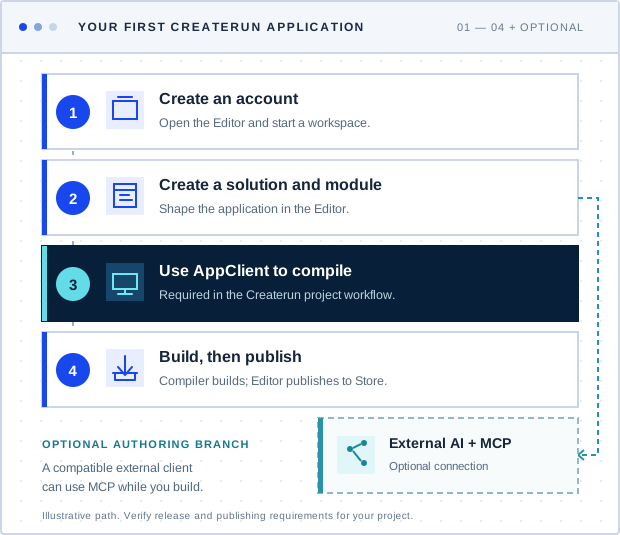
- Create your account and open the Editor in your browser; your workspace is created there with one click. Community limits apply. Start for free
- Open the Editor by signing in through single sign-on, then create your first solution and module.
- Use AppClient for project compilation. For local authoring, its Visual Studio or VS Code extension lets you work with the workspace and use
F5 to debug. - Optional: connect an external AI client by adding the MCP server to Claude Code or Cursor, then ask it to scaffold your first form.
- Compile and publish when you are ready: the Compiler builds in the background, and you publish from the Editor to the Createrun Store.
Every Createrun MCP install ships with AGENTS.md, a practical guide for AI agents authoring on the platform. It opens with the short version, then covers form rules, DynamicBox conventions, the test-mode workflow, and under-the-hood notes. Reading it gives an agent the platform conventions before it starts authoring.
Create your account + get AGENTS.md 
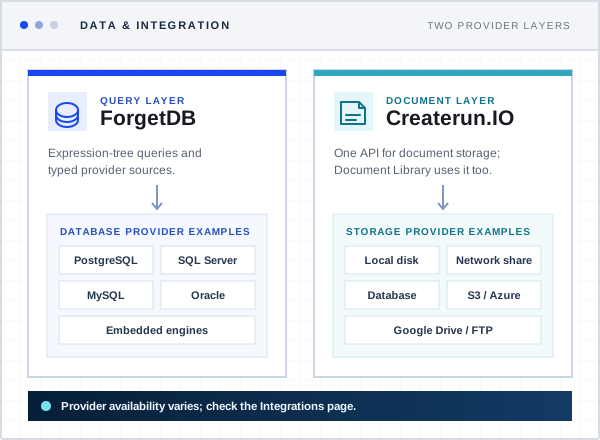
ForgetDB, the platform's ORM, runs on the database servers you have in place today: PostgreSQL, Microsoft SQL Server, MySQL, Oracle, and embedded engines among them. It has an expression-tree query API and a provider architecture with typed sources.
Createrun.IO stores documents where you require them: local disk, network share, database, S3, Azure Blob, Google Drive, FTP, and more, behind one API. The Document Library is built on this same storage layer.
Provider status for each category, live or planned, is on the Integrations page.
Deliver work to customers and the developer ecosystem
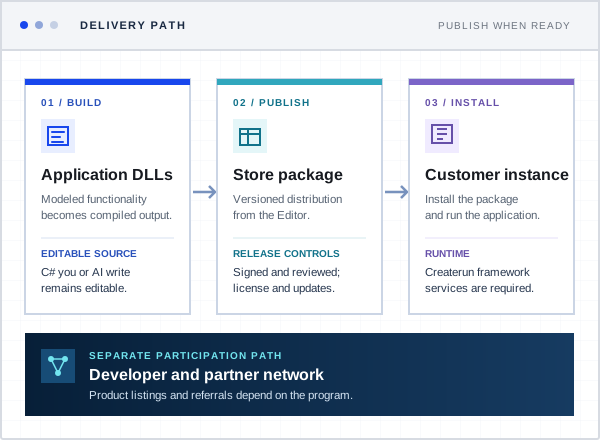
Createrun applications can be packaged for versioned distribution. Publish to the Createrun Store from the Editor; licensing and updates travel with the package. Your product and support responsibilities are part of the publishing agreement.
The developer and partner network offers a place to discuss products and expertise. Listing, referrals, and joint marketing depend on the program; participation carries no promise of sales or leads.
Sell on the Store
Start building today.
Create your account, open the Editor in your browser and build a framework application; Community limits apply. The Pricing page describes current plan information; confirm the applicable terms for your intended deployment and commercial use.
Start for free
Cookies on this site
We use cookies to measure how the site is used. Google Analytics runs only if you accept it, and you can opt out at any time.
Strictly necessaryAlways on
Keep the site working and remember this choice: .AspNetCore.Session holds your visit together and ends when you close the browser; cr_consent stores your cookie and tracking choices for 6 to 13 months.
Our own analyticsOn unless you opt out
cr_vid is a random ID that counts visits and links a visit to a later sign-up, for 13 months. It stays with Createrun and is never shared with ad networks. Turn it off with "Do not track me"; it is not set when your browser sends Global Privacy Control.
Cookie Notice·Privacy Policy